How do I turn on two-step sign-in?
In Your settings, press Set it up next to Two-step sign-in, scan the code with an authenticator app on your phone, type the 6-digit code it shows and press Turn on two-step sign-in. Save the recovery codes you're given. As the owner, you can also require it for everyone on your team.
Last checked 20 November 2026
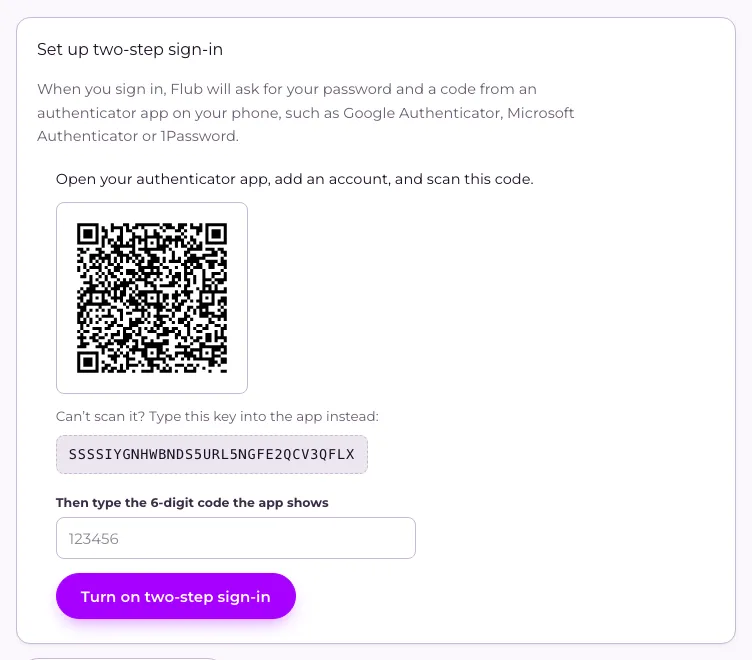
Open Your settings, press Set it up next to Two-step sign-in, and scan the code with an authenticator app on your phone, such as Google Authenticator, Microsoft Authenticator or 1Password. It takes about a minute.
- Open your account menu and press Your settings.
- Next to Two-step sign-in is off, press Set it up.
- In your authenticator app, add an account and scan the code on the screen. If you can’t scan it, type the key shown under Can’t scan it? into the app instead.
- Type the 6-digit code the app shows and press Turn on two-step sign-in. Spaces in the code are fine.
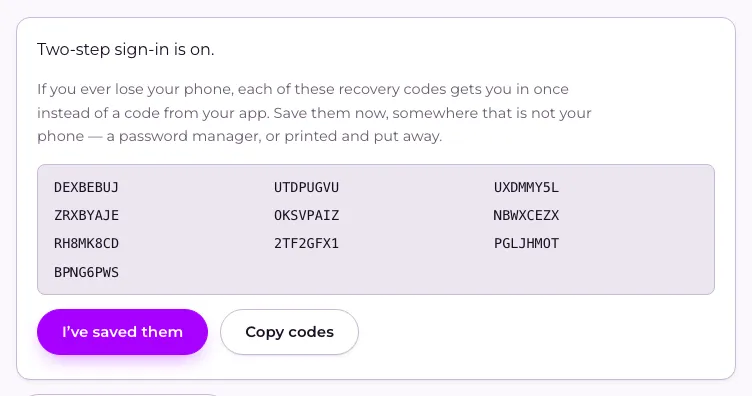
- Save your recovery codes, then press I’ve saved them. You only see them like this once, so use Copy codes and keep them somewhere that isn’t your phone, such as a password manager.
From now on, signing in asks for a code from your app as well as your password. If you lose your phone, each recovery code gets you in once instead.
Moving to a new phone
Section titled “Moving to a new phone”- In Your settings, press Manage next to Two-step sign-in is on (or Start next to New phone?), then Set up on a new phone.
- Type a code from the app on your current phone and press Continue.
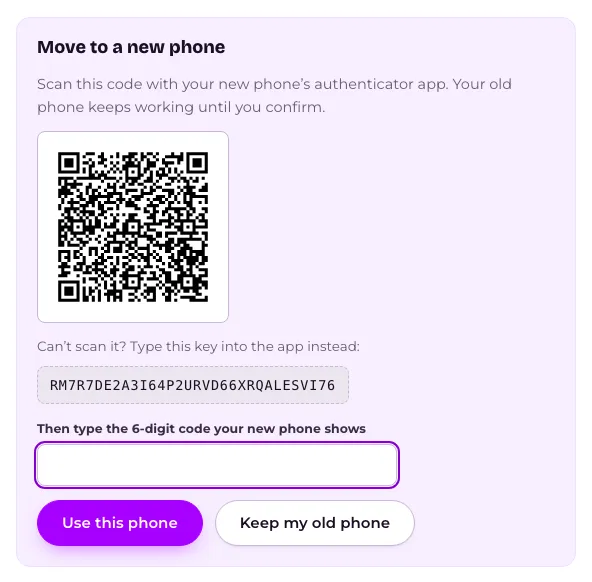
- Scan the new code with your new phone and type the 6-digit code it shows, then press Use this phone.
Your old phone keeps working until you do step 3. To stop, press Keep my old phone.
Not typing a code every time
Section titled “Not typing a code every time”On the screen that asks for your code, tick Remember this computer for 14 days before you press Verify. That computer then signs you in with just your password, with no code, for 14 days. Flub remembers up to 3 computers for you, and the oldest drops off when you add a fourth.
Only tick it on a computer that’s yours. Don’t tick it on a shared or borrowed one.
Some things still ask for a code on a remembered computer: setting up a new phone, turning two-step sign-in off, and showing your recovery codes.
To stop remembering your computers, press Manage next to Two-step sign-in is on, then Forget remembered computers. Changing your password does the same, and so does moving to a new phone or turning two-step sign-in off. The next time you sign in on any computer, Flub asks for a code again.
Turning it off
Section titled “Turning it off”On the same page, press Turn off two-step sign-in, type a code from your app and press Turn it off. You can’t turn it off if your business requires it for everyone, and Flub staff can’t turn it off. You can still move it to a new phone.
Requiring it for everyone
Section titled “Requiring it for everyone”As the owner, press Everyone must use two-step sign-in on the Team page. You need it on for yourself first. It covers the whole Flub dashboard, and anyone who hasn’t set it up sees Two-step sign-in first until they have. After they do, they land back where they were going.
If someone loses their phone, anyone with owner access can reset their two-step sign-in from the Team page.
Related
Section titled “Related”© Flub 2026 | What's new | useflub.com
Flub is a trading name of FLUB INDUSTRIES LTD, a company registered in England and Wales (no. 17491066). Registered office: The Workstation, 15 Paternoster Row, Sheffield, S1 2BX, United Kingdom.